1
Open the app and look at the main totals.
The first card shows your portfolio value. The second card shows the live BTC price. Both are designed to load fast and give you the headline numbers right away.
WristFolio guide
WristFolio is built to be simple. This page walks through the fastest way to get your BTC amount in, refresh pricing, and use the history screens on Apple Watch.
Main screen
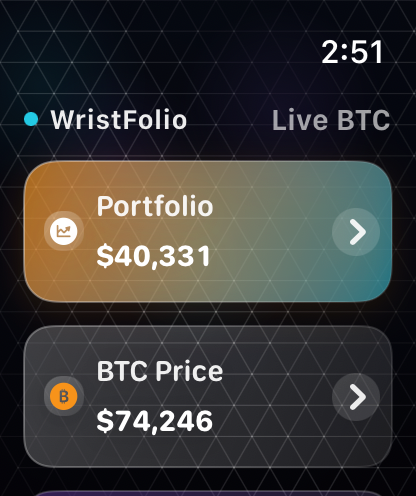
When you open WristFolio, the main screen shows your portfolio total at the top, the live BTC price underneath, your stored BTC amount, and a button for manual refresh. The goal is to keep the core information visible without extra steps.
The first card shows your portfolio value. The second card shows the live BTC price. Both are designed to load fast and give you the headline numbers right away.
Type the amount of Bitcoin you own. WristFolio stores that value on your Apple Watch and uses it to calculate your portfolio total automatically.
Tap Reload or pull down to refresh. If the network is weak, the app may keep showing cached information until a fresh market request succeeds.
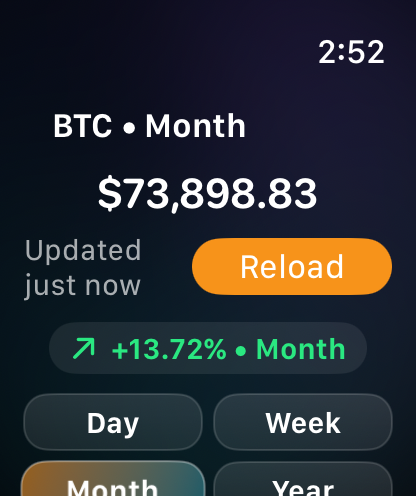
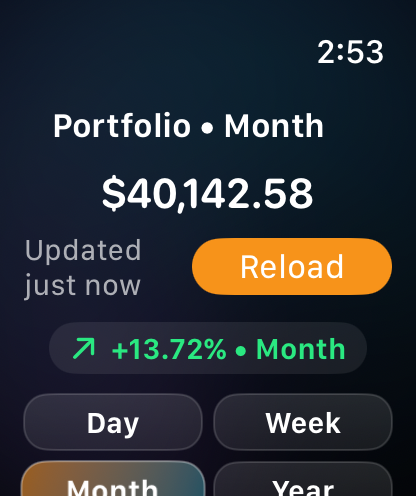
Tap the BTC card to open Bitcoin history. Tap the Portfolio card to open your portfolio history. Use the time-range buttons to switch between shorter and longer views.